Convert PNG or JPG to SVG and Edit Individual Colors
Updated October 7, 2026
Written and maintained by GadgetPickLab
To convert PNG or JPG to editable SVG, trace the pixels into vector paths, compare the result with the original and save the SVG. GadgetPickLab also lets you hide, recolor, merge or export individual color groups. Simple logos and flat illustrations are better starting points than photographs with many gradients.
Inputs and outputs
| Input | A supported raster image such as PNG or JPG, up to 10 MB, 64 megapixels and 16,000 pixels on one side. |
|---|---|
| Large inputs | The working image is automatically reduced for processing; the SVG keeps the original canvas dimensions. |
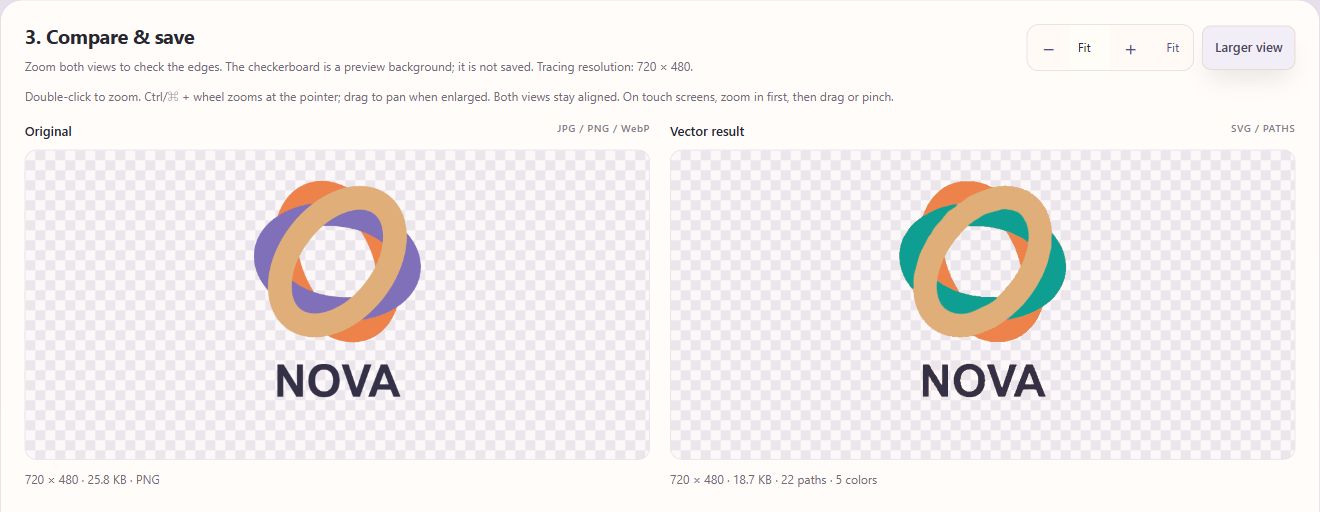
| Editing | Compare at up to 16× zoom, change or hide colors, merge similar colors and save separate color groups. |
| Output | An SVG made of traced paths; it does not recover original typography or the source designer’s layers. |
| Processing | The original file is not changed. Conversion runs in your browser without uploading the image to a processing server. |
Choose a good image for vector tracing
Start with a logo, icon or flat-color illustration. A PNG with a transparent background can keep the subject separate from the background. A JPG may contain compression colors along edges, so it can need more cleanup.
Tracing does not turn a photograph into its original drawing. Fine text, shadows and gradients can become many paths or lose detail. Keep the raster original and compare at the size you plan to use.
Convert the image and compare the outline
- Open the image-to-SVG tool and select the PNG or JPG. Choose a starting preset that matches the artwork.
- Generate the SVG, then compare the original and result. Zoom and pan around small letters, holes, facial details and the outer contour.
- Adjust the color count and tracing controls if a real detail disappears or the result is too complex, then generate again.
- For stray edge colors in a JPG, try the edge cleanup settings. Compare carefully: a real gray detail should not be removed just because it resembles compression noise.
Recolor or separate the SVG by color
For a two-color icon, the useful outcome is a vector file with editable color groups. Trace the image first, then inspect the color list. If the trace finds extra edge shades, review them before deciding which colors to merge.
- Select a color group and change its fill, or hide it to check which parts it controls. Hidden parts become transparent in the edited output.
- Use the similar-color merge preview or choose colors manually. Confirm the proposed groups before merging and use the last-merge undo if needed.
- Save the complete edited SVG, or export one color group as a separate SVG for a layered workflow.
- Open the saved file in a browser or your vector editor. Check the outline, transparency and chosen color changes in the actual file, not only the preview.
Why vectorizing may not shrink the file
SVG describes paths. A detailed photograph or noisy JPG may create many paths and a larger file than the source image. Use fewer colors or simpler artwork when appropriate; compare quality before choosing a smaller result.
Automatic resizing of large inputs also limits the detail available for tracing. Keeping the original canvas dimensions does not restore information removed from the working image.
Questions before you export
Does changing a JPG extension to .svg make it a vector?
No. A file extension does not create vector paths. Use tracing and inspect the saved SVG in a browser or vector editor.
Will text become editable text in the SVG?
The conversion traces visible pixels into paths. It does not reconstruct the original font or editable text objects.
Can I convert a photo?
You can try, but photographs and gradients often produce complex paths or simplified details. Flat-color logos, icons and illustrations are more suitable.
Try another workflow
Make a Music Visualizer: Rotating Album Video and Transparent Exports
Make an MP3/WAV music spectrum with an album photo. Choose background video, transparent MOV or PNG frames, and learn how to import the result into an editor.
Make a Photo Bead Pattern with the Colors and Quantities You Own
Enter bead colors and piece counts, fit a photo to a grid, review inventory limits and export a printable pattern and usage CSV.
Compress a Photo to 100KB or 200KB Without Uploading It
Set a maximum JPG, PNG or WebP file size, decide whether resizing is allowed, compare the actual bytes and save a result for an upload form.
Merge Selected PDF Pages in the Order You Need
Combine two to ten PDFs, keep selected pages from each file, change file order and verify the saved PDF without uploading your documents.