Merge Selected PDF Pages in the Order You Need
Updated October 7, 2026
Written and maintained by GadgetPickLab
To merge only the pages you need, add the PDF files in the required file order and enter the pages to include for each file. Preview the selection, create the combined PDF and open the saved file to verify its page count. GadgetPickLab processes the documents in your browser.
Inputs and outputs
| Input | 2–10 PDF files, up to 50 MB total and 250 input pages. |
|---|---|
| Selection | Choose pages to include separately for each file. |
| Order | Move files into the order in which they should be combined. |
| Output | One PDF containing the selected pages. |
| Privacy | No account or upload to a processing server. |
Combine only the required pages
- Choose two or more PDFs. Keep a copy of the originals.
- Move the files up or down into the required order.
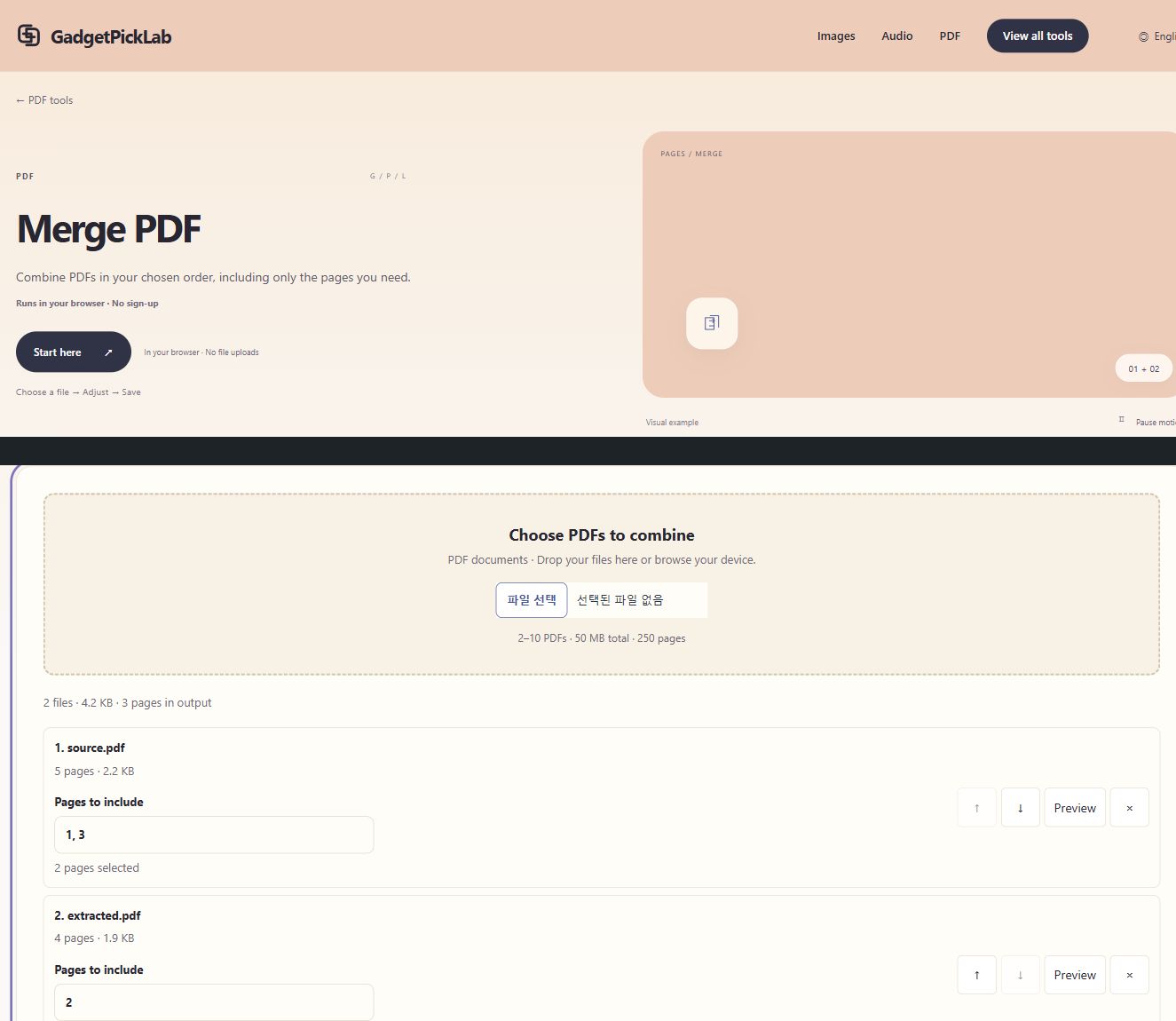
- For each file, enter the pages to include. Use its thumbnail preview to check the selection.
- Create and download the combined PDF.
- Open the downloaded PDF independently and verify the first page, last page, page count and orientation.
Example: two pages from one file, one from another
In the verified sample, the first PDF contributes pages 1 and 3 and the second contributes page 2. The output contains three pages, following the selected file order. This avoids merging every page and deleting unwanted pages later.
Choose another tool when the task is different
For one document, use Extract PDF Pages to save a selection in the required order. Use Organize PDF to reorder, rotate or remove pages in one workspace. For photos rather than PDF inputs, use Images to PDF first.
Merging pages does not edit their text or guarantee a smaller file. A PDF that cannot be read by the tool must be handled in a compatible PDF application.
Questions before you export
Can I merge just some pages from each PDF?
Yes. Select the pages to include separately for each input file and check the selection before saving.
Does merging compress the PDF?
No size reduction is guaranteed. This workflow combines selected pages.
Can I use this to edit the words on a page?
No. Use a document or PDF text editor for text changes; this tool combines PDF pages.
Try another workflow
Make a Music Visualizer: Rotating Album Video and Transparent Exports
Make an MP3/WAV music spectrum with an album photo. Choose background video, transparent MOV or PNG frames, and learn how to import the result into an editor.
Convert PNG or JPG to SVG and Edit Individual Colors
Trace a raster logo or illustration into SVG, adjust colors and edges, then hide, recolor or export individual color groups in your browser.
Make a Photo Bead Pattern with the Colors and Quantities You Own
Enter bead colors and piece counts, fit a photo to a grid, review inventory limits and export a printable pattern and usage CSV.
Compress a Photo to 100KB or 200KB Without Uploading It
Set a maximum JPG, PNG or WebP file size, decide whether resizing is allowed, compare the actual bytes and save a result for an upload form.