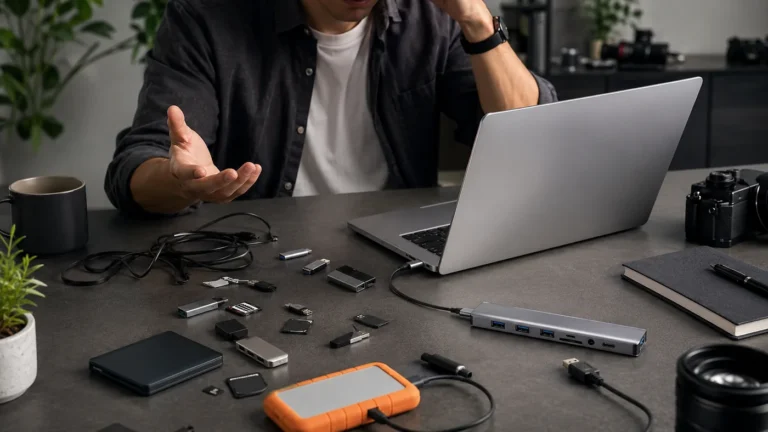
USB-C Hub: Which Ports Does Your Laptop Actually Support?
Quick Answer
More laptop ports are useful only after you list the devices that must connect at the same time and confirm what the computer’s USB-C port supports. A USB-C hub helps when compatible data accessories are repeatedly swapped. Skip it if you need video output, laptop charging, or another feature that is not clearly listed for the exact hub and host device.
- Try first: Connect essential devices directly and write down which port conflict actually interrupts the work.
- Consider one when: Two or more compatible USB data devices need to stay connected during the same routine.
- Skip if: The host port cannot provide the needed function or one direct connection already covers the task.
Why This Keeps Happening
A shortage of sockets can hide several different problems: the wrong connector, insufficient power, a data-speed bottleneck, or a need for display output. Counting ports alone does not identify the right hub.
- Physical shortage: Mouse, drive, and another accessory compete for the same available port.
- Connector mismatch: The laptop and accessory use different plug shapes.
- Power demand: Bus-powered devices may ask for more power than the host can supply.
- Unsupported feature: A USB-C socket does not automatically provide charging or display output.
Test each device directly first. A hub can combine supported connections, but it cannot add a capability the laptop port does not have.
Start With the No-Buy Fix
- List every accessory needed at the same time.
- Separate data devices from charging and display requirements.
- Check the laptop manual for the exact USB-C port capabilities.
- Test each drive or peripheral directly for stable operation.
- Decide where the hub and its short cable can rest without strain.
Try before buying: If only one accessory is used at a time, swapping it directly may be simpler and more reliable than carrying another adapter.
Choose by the Real Situation
Mouse and flash drive
- Start here: Use direct ports first
- Product decision: A data hub may help
- Check before deciding: Port count and connector
External display needed
- Start here: Check host video support
- Product decision: Only a video-capable hub
- Check before deciding: Display standard
Laptop charging needed
- Start here: Use original charger
- Product decision: Only with stated pass-through
- Check before deciding: Power delivery rating
One occasional device
- Start here: Connect it directly
- Product decision: Usually no
- Check before deciding: No unresolved conflict
Where One Gadget Can Help
A USB-C hub becomes useful when the host supports the required data connection and repeated swapping is the remaining friction. It should reduce interruptions without hanging from the laptop or crowding adjacent ports.
The selected listing describes a compact four-port USB or Type-C 3.0 data hub for common peripherals. That wording points toward data expansion; it should not be interpreted as proof of HDMI output, Ethernet, memory-card support, or pass-through charging.
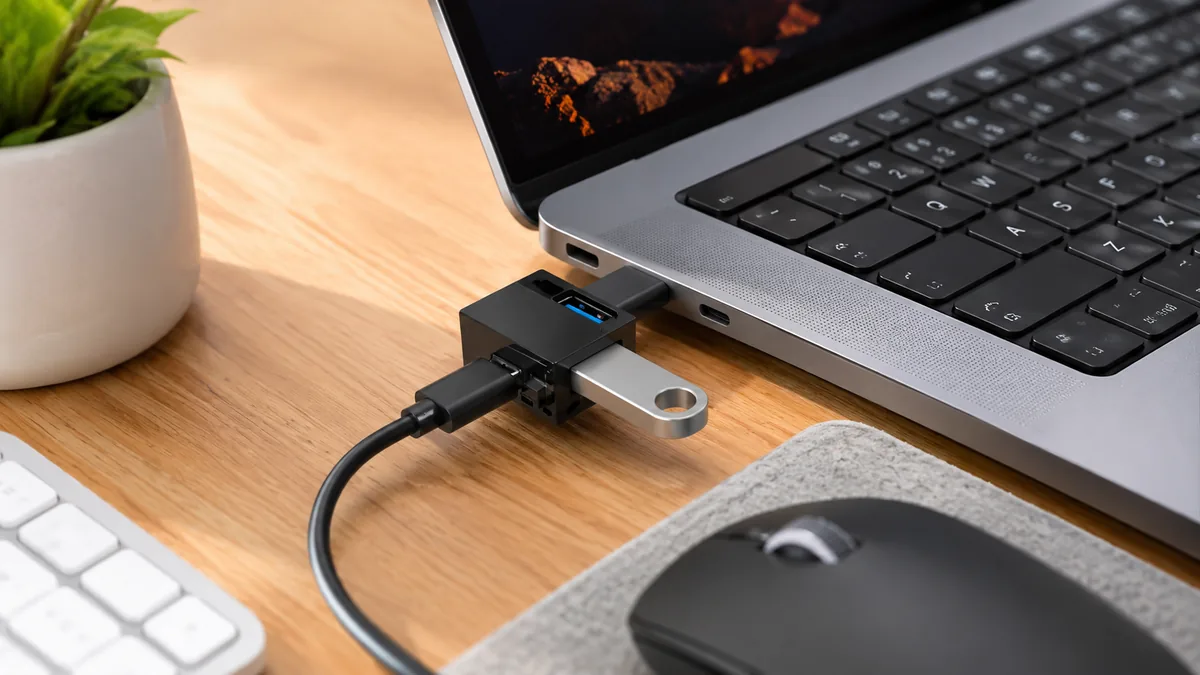
The single AliExpress listing below is one example of this tool type, not a best pick or a hands-on recommendation. Use it only as a reference, and verify the current specifications, compatibility, recent reviews, shipping, returns, and price yourself.
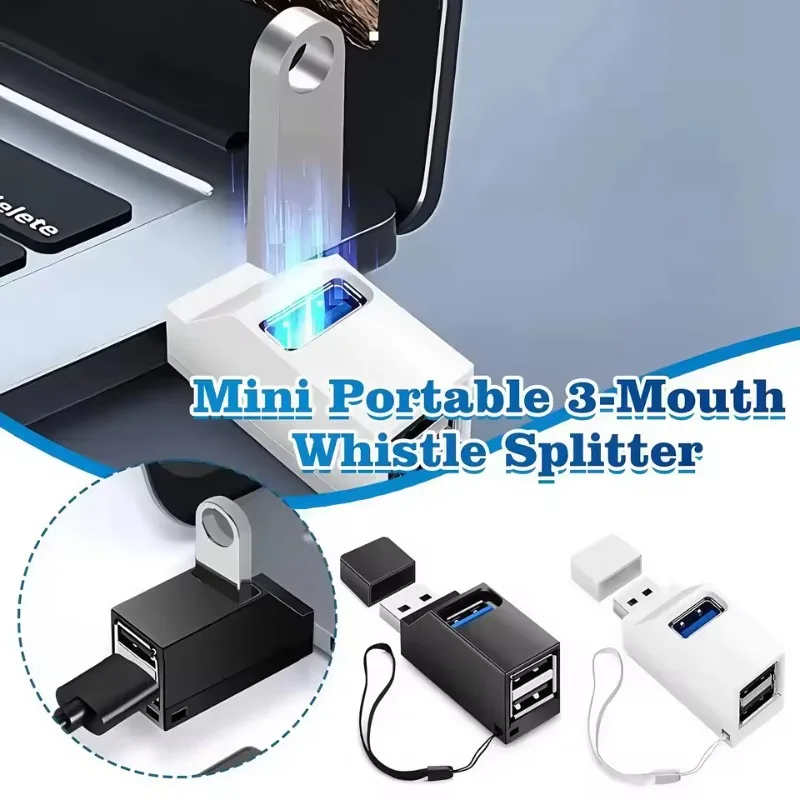
Skip the product if: you need a display, laptop charging, high-power storage, or another function that the exact option does not state clearly.
Checks Before You Order
Start with the host computer, then match the hub. Port labels on the adapter cannot override the laptop’s own limits.
- Host connector: Confirm whether the selected plug is USB-C or USB-A and whether an adapter is involved.
- Port mix: Count the exact USB port types and avoid assuming every product photo shows the same option.
- Data standard: Match the stated speed class with the slowest device and cable in the chain.
- Power behavior: Bus-powered drives and several accessories may need more power than a small unpowered hub can provide.
- Cable placement: The hub should rest on the desk without twisting the laptop port.
Choose the smallest hub that explicitly covers the simultaneous devices you listed, and nothing more.
Common Setup Mistakes
- Buying by port count. Four wrong ports do not solve one real connection need.
- Assuming video support. USB-C shape alone does not establish display output.
- Expecting laptop charging. Pass-through power must be stated for the exact model.
- Hanging the hub. Cable weight can strain the computer port.
- Connecting several power-hungry drives. An unpowered hub may disconnect or behave inconsistently.
Quick Questions
When is a USB-C hub worth adding?
Add one when several supported data accessories must stay connected and direct-port swapping interrupts the routine.
Who should skip a basic four-port hub?
Skip it when one port is enough or when the real need is video, Ethernet, card reading, or laptop charging.
Can any USB-C hub send video to a monitor?
No. Both the laptop port and hub must explicitly support the required video mode.
Affiliate Disclosure
This article includes one affiliate listing as an optional example. GadgetPickLab may earn a commission at no extra cost if you buy through the link. Confirm host and port compatibility before ordering.