Need More USB Ports Without More Desk Mess? Check These First
Quick Answer
A crowded USB setup usually improves after unused accessories are removed, direct laptop ports are assigned to the most important devices, and cable reach is fixed. A USB-C hub helps when one compatible host port must regularly connect several devices at the same time. Skip it if you only need a longer charging cable, your device cannot output video or data through that USB-C port, or the hub would add more adapters than it removes.
- Try first: Disconnect unused devices and list what must be connected at the same time.
- Consider one when: A compatible USB-C host port needs several repeatable data, display, or power connections.
- Skip if: The real problem is cable reach, a damaged port, or a device that lacks the required USB-C features.
What Is Actually Causing the Problem
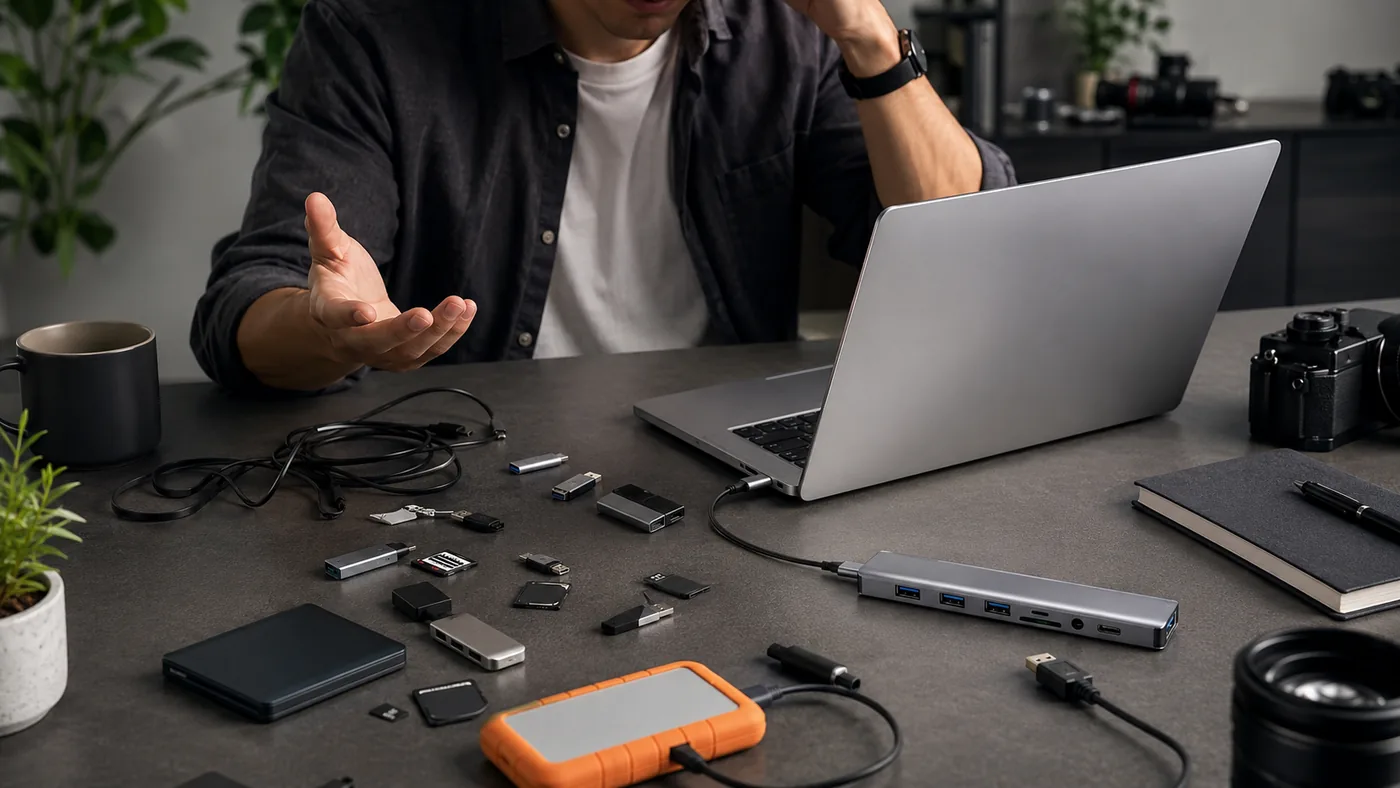
“Not enough ports” can hide several different issues. Sometimes every port is occupied by something that is rarely used. Sometimes a charger cannot reach. Sometimes the computer has enough connections, but plugging and unplugging them every day is inconvenient. A hub is most useful for that last case.
Write down the exact devices you use together: keyboard, mouse, storage drive, card reader, monitor, microphone, network cable, or charger. Then identify what each connection needs. A port that physically fits USB-C may support charging only, basic data, high-speed data, display output, or several of those features. Shape alone does not guarantee capability.
- Count problem: Several necessary devices genuinely need to stay connected together.
- Reach problem: One cable is too short or its plug bends against the device.
- Capability problem: The host USB-C port does not support the display, speed, or charging behavior expected.
- Routine problem: A hub adds ports, but the desk still has no sensible place for cables to enter and leave.
Start With the No-Buy Fix
- Remove unused accessories. Disconnect items that do not serve the current work session.
- Reserve direct ports. Give the laptop’s best ports to the highest-speed or most reliable devices.
- Fix cable reach. Reposition the charger or use one suitable cable instead of extending everything through a hub.
- Test each device. Confirm that storage, display, audio, and charging work correctly when connected directly.
- Check the host specification. Learn whether the USB-C port supports data, video, and power delivery.
- Plan the cable direction. Choose where a hub could rest without pulling on the host port or blocking the mouse.
Try before buying: If removing one unused device and rerouting one cable solves the setup, keep the direct connection. Fewer connection points are usually easier to troubleshoot.
A Practical Decision Check
One charger cannot reach
- Start here: Use a suitable longer cable
- Product decision: No hub needed
- Check before deciding: Power rating and connector
Unused devices occupy ports
- Start here: Disconnect and store them
- Product decision: No purchase needed
- Check before deciding: What is used simultaneously
Several devices connect every day
- Start here: Test each one directly
- Product decision: A hub can create one repeatable setup
- Check before deciding: Port types, speed, and power
You want an external display
- Start here: Check host video support
- Product decision: Only with matching display output
- Check before deciding: Resolution, refresh rate, and cable
Where One Gadget Can Help
A USB-C hub becomes useful when a compatible laptop, tablet, or phone repeatedly needs several connections and you want one predictable point for attaching them. It can reduce daily plugging when the same keyboard, storage, display, and power setup returns at one desk.
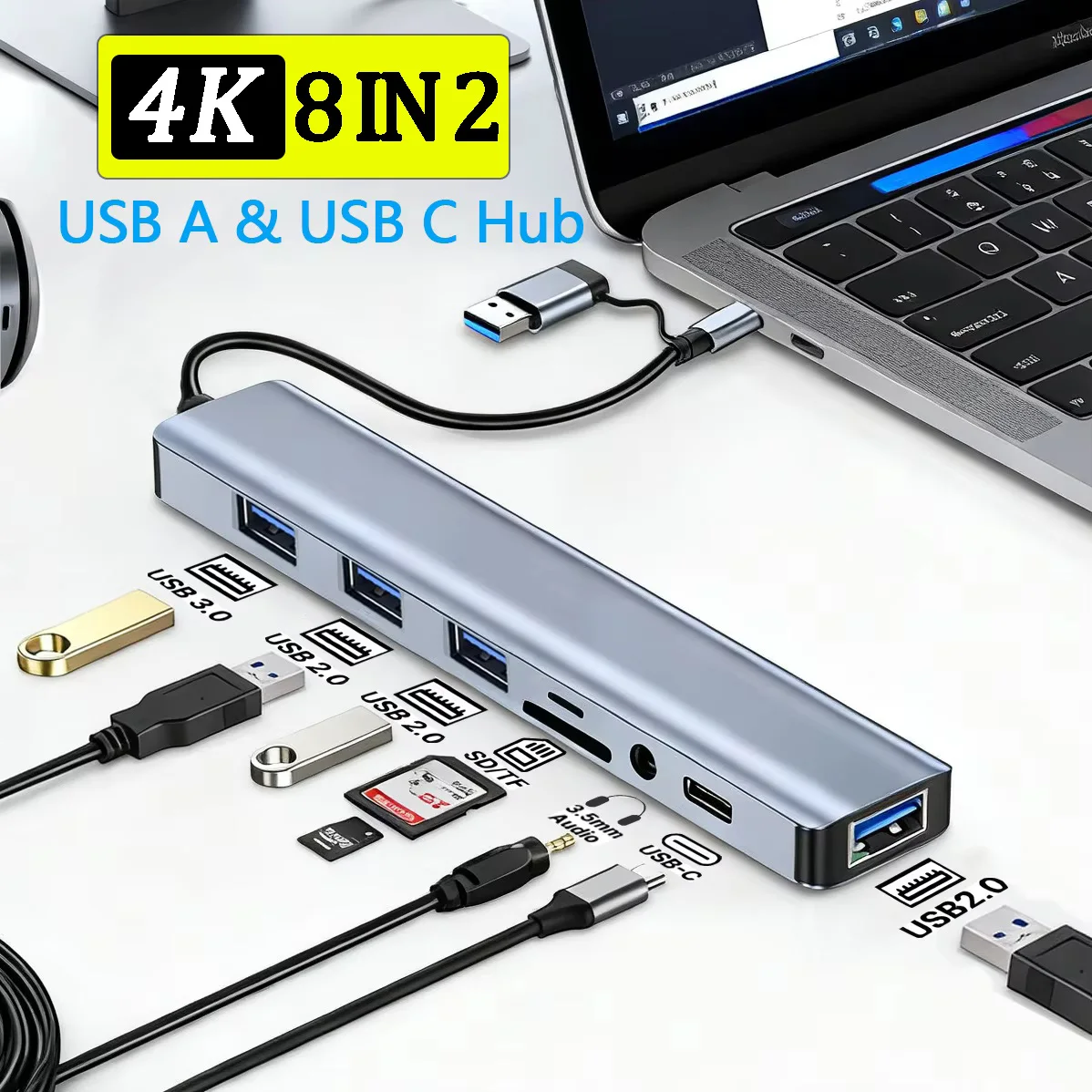
The example below is presented as a multiport hub with a mix of data, charging, and expansion connections. The number printed in the product name matters less than whether the specific ports match your devices and whether the host supports the features behind them.
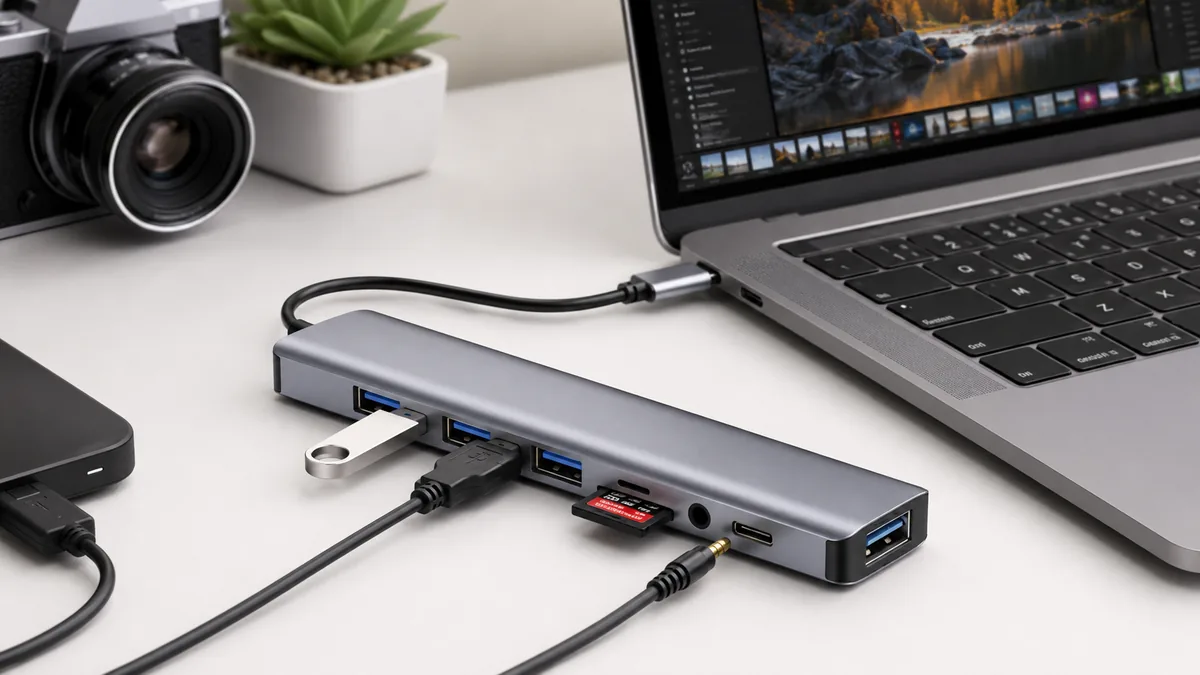
The single AliExpress listing below is one example of this tool type, not a best pick or a hands-on recommendation. Use it only as a reference, and verify the current specifications, compatibility, recent reviews, shipping, returns, and price yourself.
Skip the product if: You cannot identify the capabilities of the host USB-C port, only need extra cable length, or would connect more adapters and unused accessories simply because extra ports are available.
Checks Before You Order
This model is presented as an 8-in-2 USB-C hub for data transfer, charging, and device expansion. Before ordering, match every planned connection to an actual port and check the host device rather than assuming all USB-C sockets behave alike.
- Host connection: Confirm the plug arrangement fits your exact device and does not cover another needed port.
- Data ports: Match the stated USB speed to storage drives, card readers, cameras, and other high-transfer devices.
- Display output: Verify the host supports video over USB-C and that the listed resolution and refresh rate meet the monitor.
- Charging: Check whether power delivery is input-only, the maximum pass-through claim, and the charger required to reach it.
- Operating-system fit: Look for current compatibility with the laptop, tablet, or phone and any limitations reported by recent users.
- Heat and cable strain: The hub needs ventilation and a resting position that does not hang from or twist the host connector.
If the listing bundles several options under one page, compare the port layout in the selected option with the written specification before ordering.
What to Avoid
- Counting ports instead of capabilities. Eight connections are not useful when the needed video, speed, or power feature is missing.
- Assuming USB-C means video. The host must support the display mode as well as the hub.
- Powering too much through one port. Charging and high-draw accessories may need a suitable external power source.
- Letting the hub hang. Cable weight can pull on the device port and create intermittent connections.
- Adding devices because space exists. Extra ports can recreate the clutter the hub was meant to reduce.
Quick Questions
When is a USB-C hub worth adding?
It is worth considering when several necessary devices connect together on a compatible host and the setup repeats often. The hub should reduce plugging and cable movement while preserving the speed, video, and power features you actually use.
Who should skip a multiport hub?
Skip it if the problem is only cable reach, the host port’s capabilities are unknown, or one direct connection already handles the routine. A hub also makes little sense when its cable direction would strain the device.
Can a hub add video output to any USB-C device?
No. The host USB-C port must already support the required video mode. A matching connector and an HDMI port on the hub do not create display capability when the phone, tablet, or computer lacks it.
Affiliate Disclosure
This article includes one affiliate listing as an optional example. GadgetPickLab may earn a commission at no extra cost if you buy through the link. The hub is not presented as universally compatible; verify the host port, selected option, and every required connection.